Outta Line? Get inLine!
A casual demo of a next-gen outlining app I'm building...

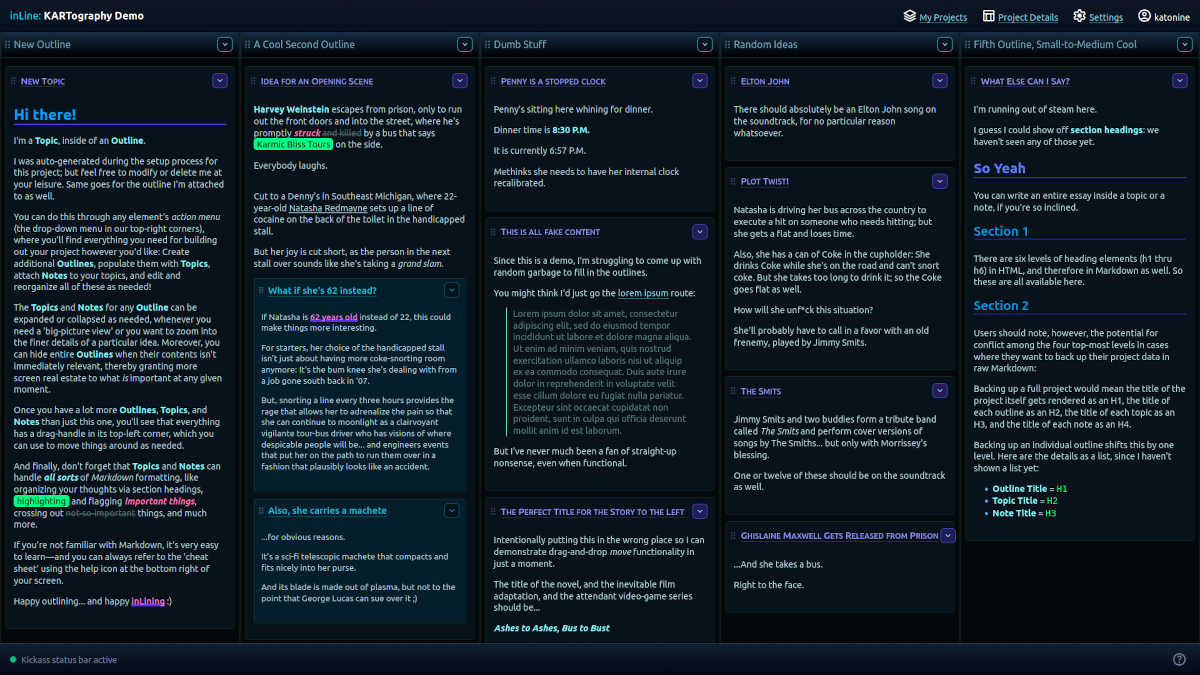
I've spent the last 25 years longing for an app that would let me organize things into multiple outlines—and view and edit those outlines side by side.
Coming out of March, I happened to remember that I'm technically a software engineer; so, when I couldn't find an app that suited my needs, I spent the majority of May coding one.
This is a brief write-up of my progress so far, for anyone who's interested.
I decided to call the app inLine, since its main purpose is to create multiple outlines and display them in line with each other. How clever; right?
I haven't given real serious thought yet to how I might potentially monetize this, or whether I might open-source it someday: It would require a fair degree of further polishing either way (like how the status-bar footer just says "Kickass status bar active" for now because I haven't implemented flash messages that provide success/failure feedback for crucial operations like moves or deletions).
So, for the time being, this is just for me. Sorry 😛 <shrug>
Anyway, creating a new project presents you with a single outline that contains a single topic...
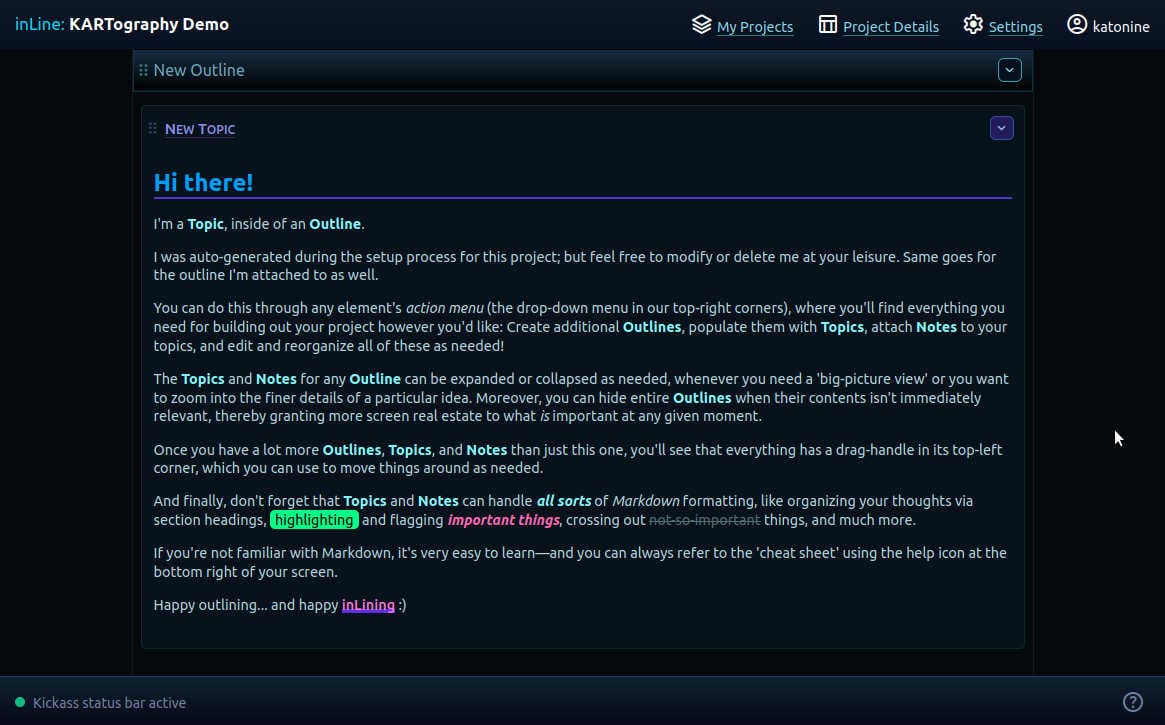
...but there are already thousands of apps out there that will let you work with a single outline; so the first thing you'll probably want to do is create several more outlines...
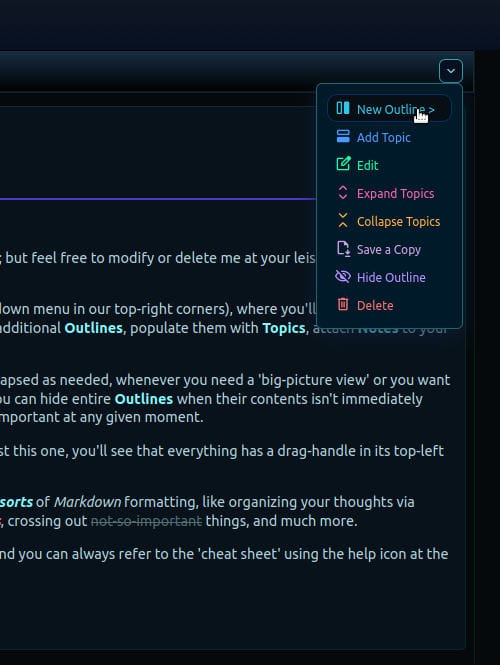
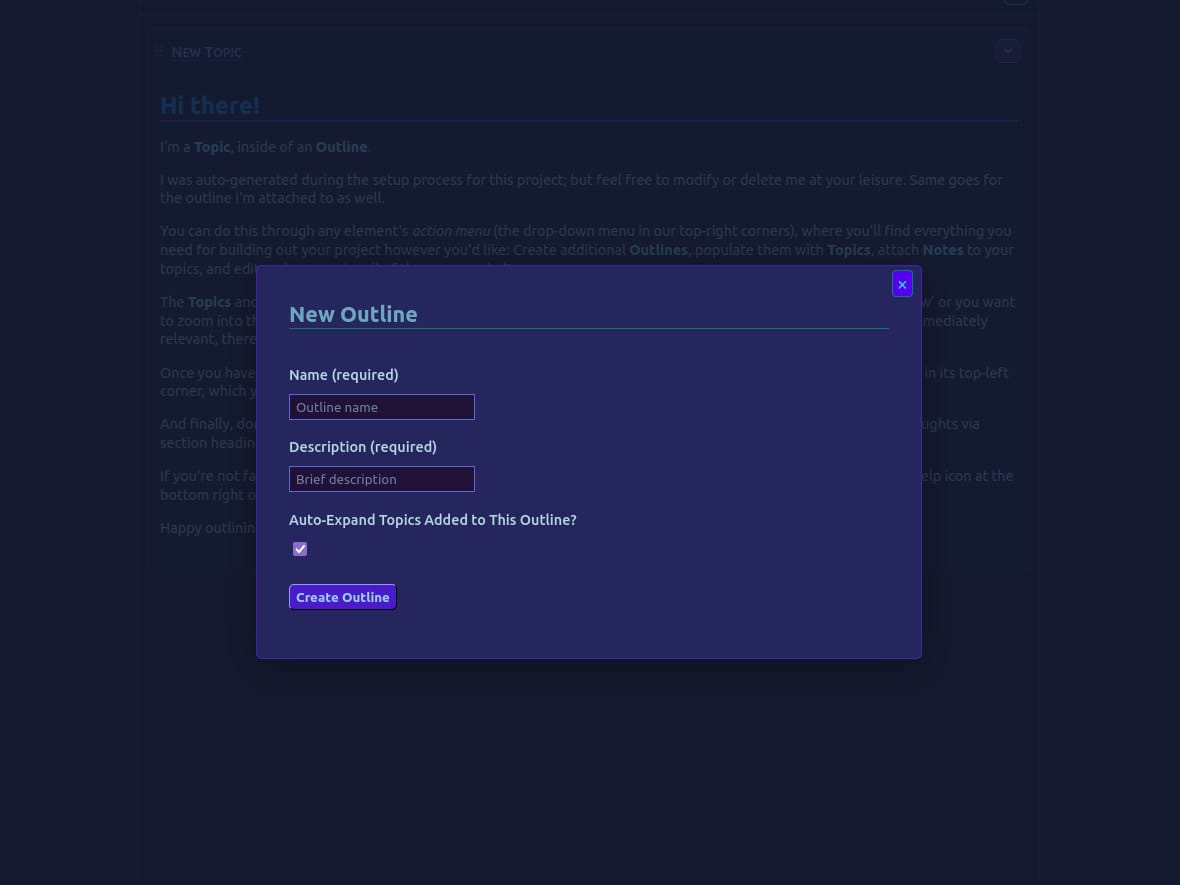
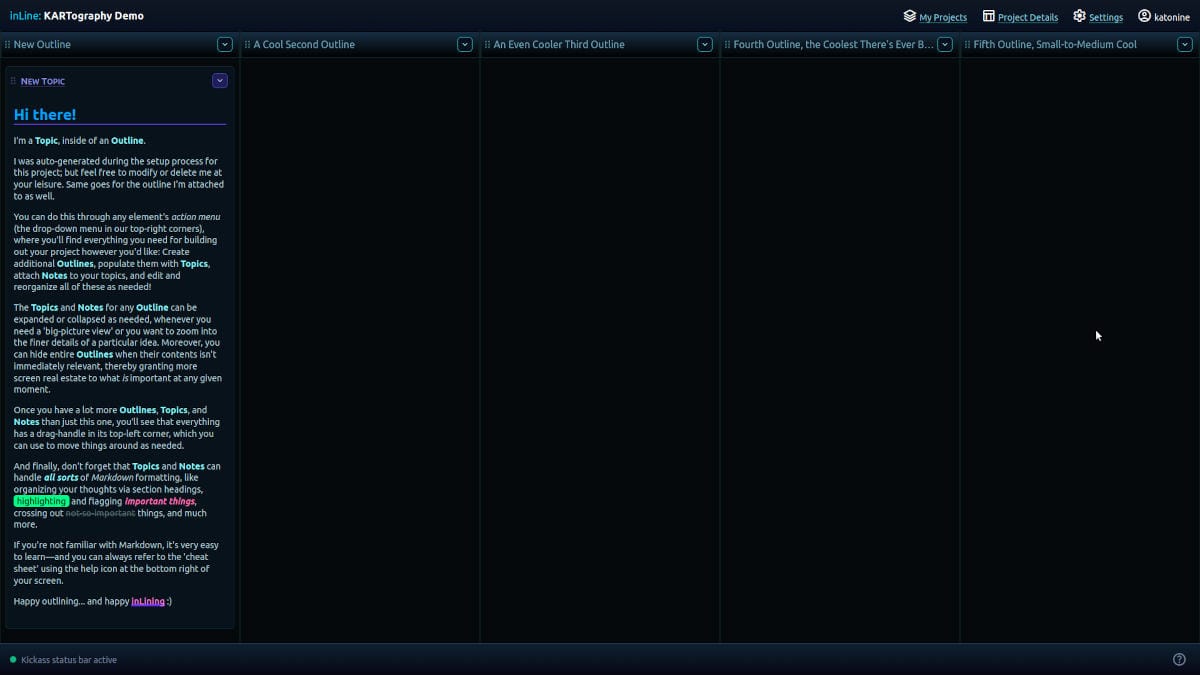
That's a good start.
For those unfamiliar with Markdown, it's a lightweight markup language meant to allow for quick and easy formatting of text in a text editor (as opposed to, say, a full-fledged word processor).
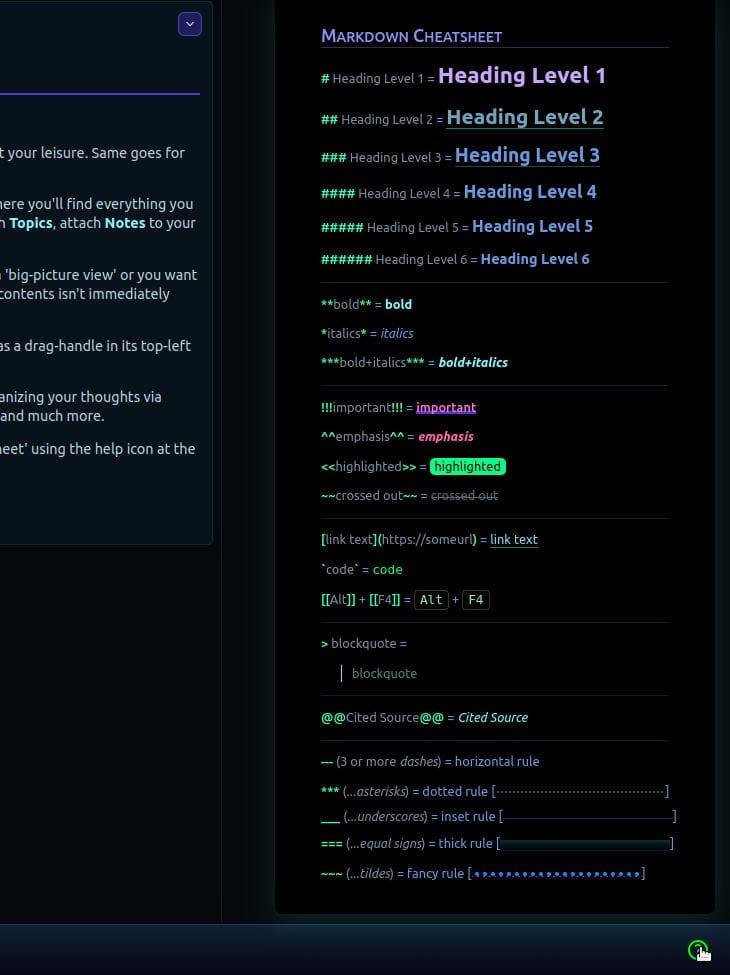
I wanted to author the entire app from scratch; so instead of plugging in someone else's Markdown processing library, I created my own that can handle the majority of the official Markdown specification (including tables, which I forgot to mention in the cheat sheet) while also extending it a bit here and there to include additional formatting from which I will personally benefit while working.
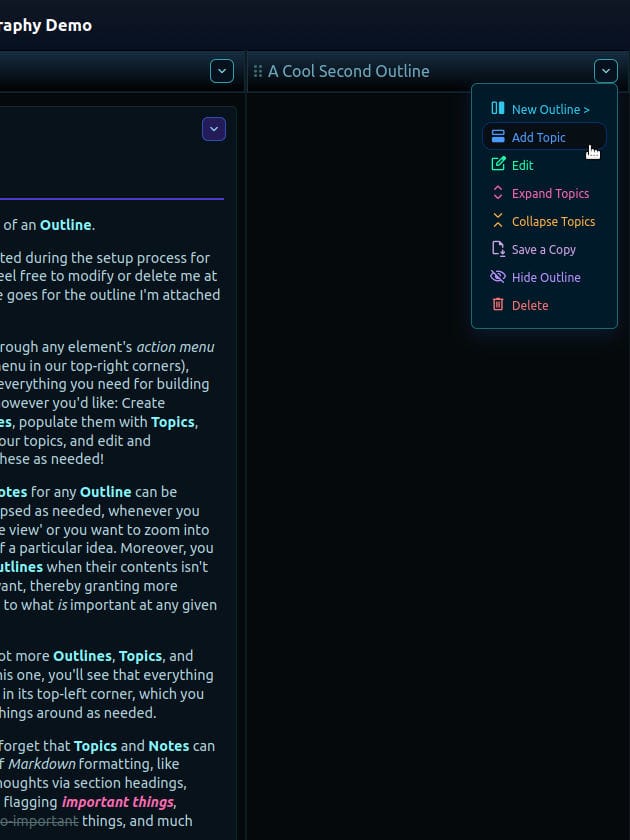
So, here's the Markdown cheat sheet; and now we can start adding topics to our outlines...
With Markdown functionality, you type plain text (left) and you get formatted text (right) that's pleasant to look at but also easy to store in a database, modify at will, back up in an open file format, et cetera...
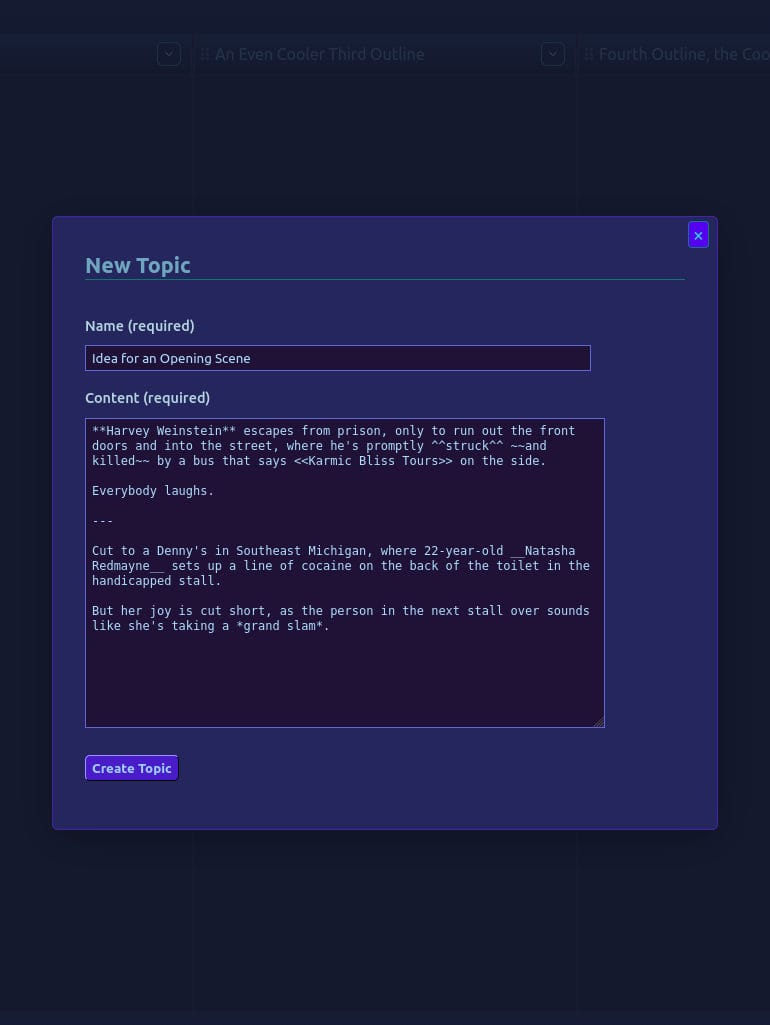
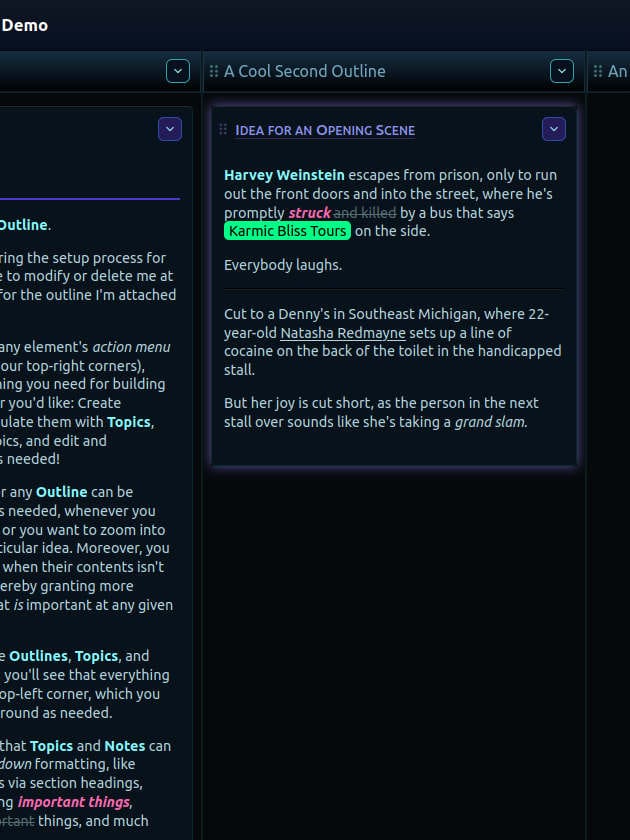
Each outline can have as many topics as you want; and each topic can have as many notes as you want...
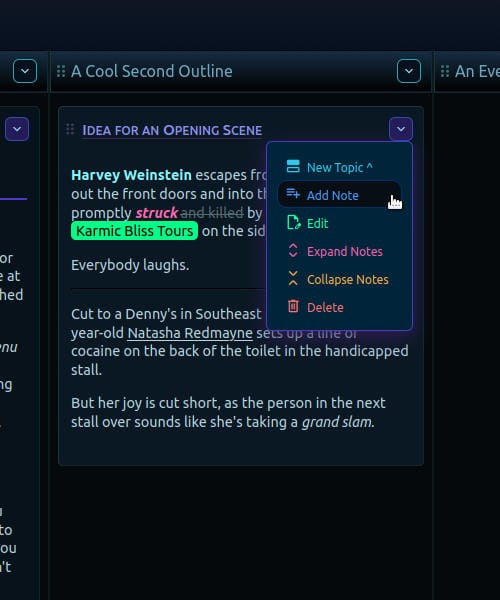
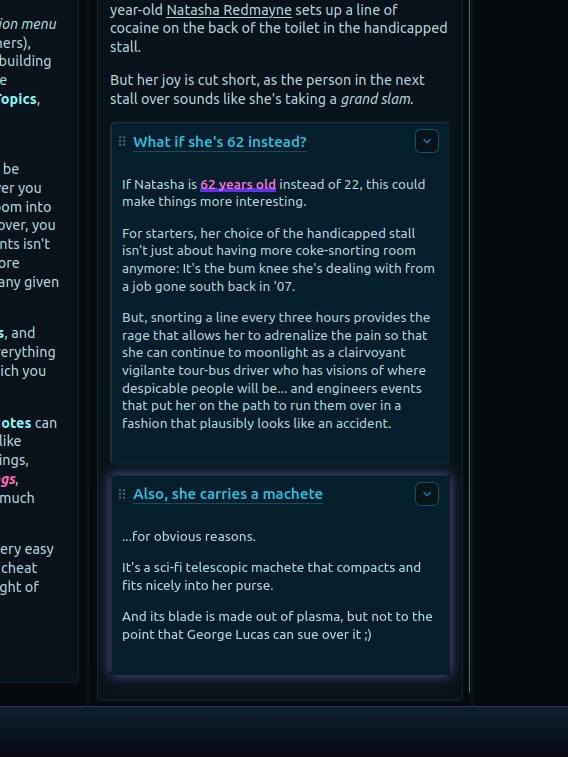
Outlines, topics, and notes already provide three levels of hierarchical organization; but the ability to use section headings in your content lets you organize things even further. You could write an entire essay inside a topic or a note if you wanted to...
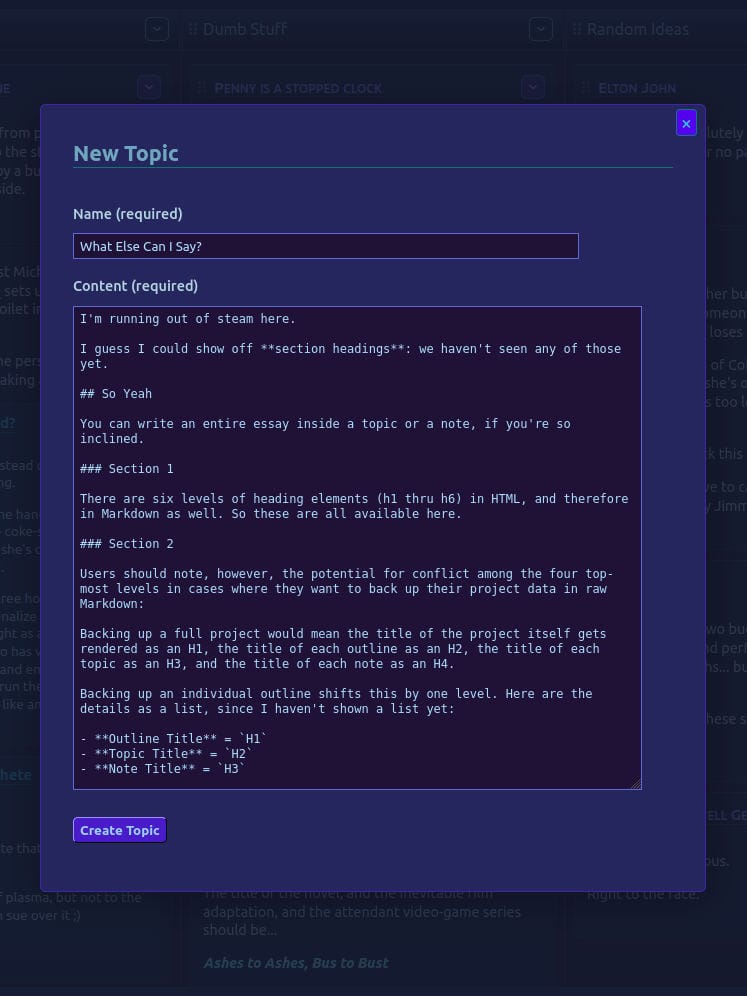
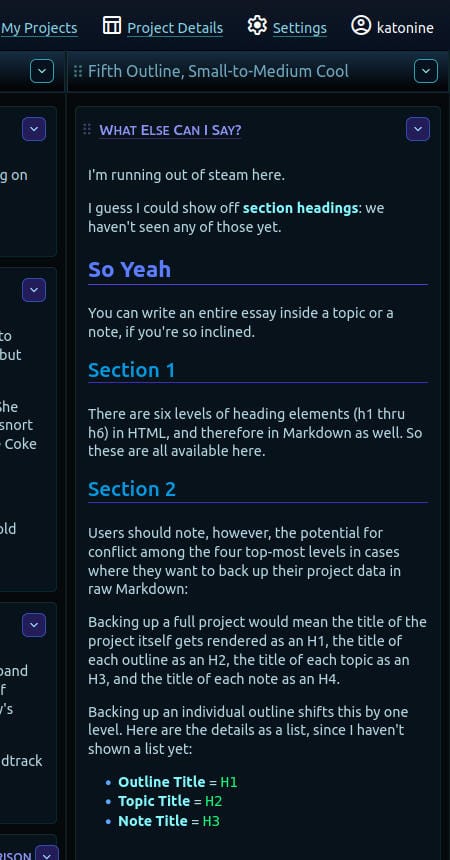
Now, let's imagine this is a serious project—like we're plotting a novel, or working on a doctoral thesis. We could have several dozen outlines, each with hundreds or thousands of child topics and notes...
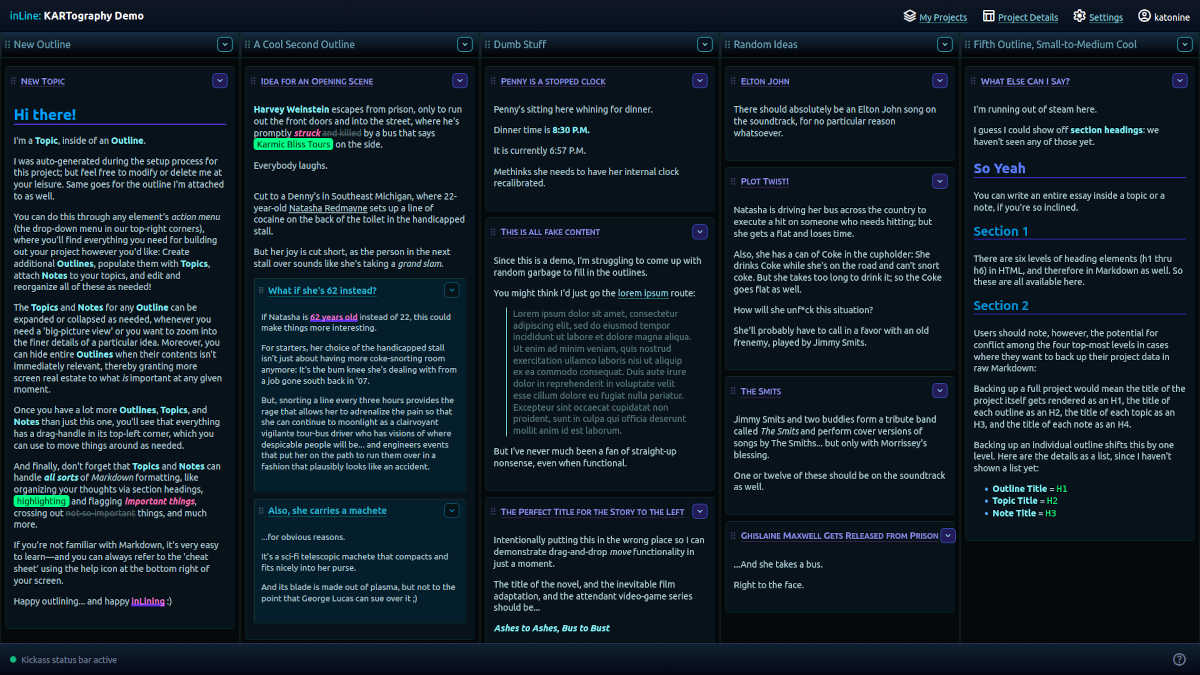
We'll often find that we don't want or need to see everything at all times.
No problem: Just hide whatever isn't relevant at the moment, so that what is relevant has more screen real estate available...
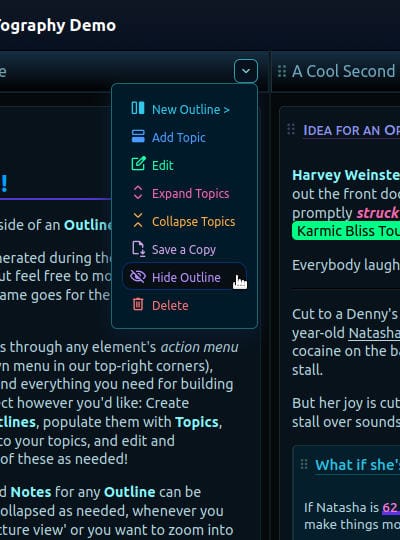
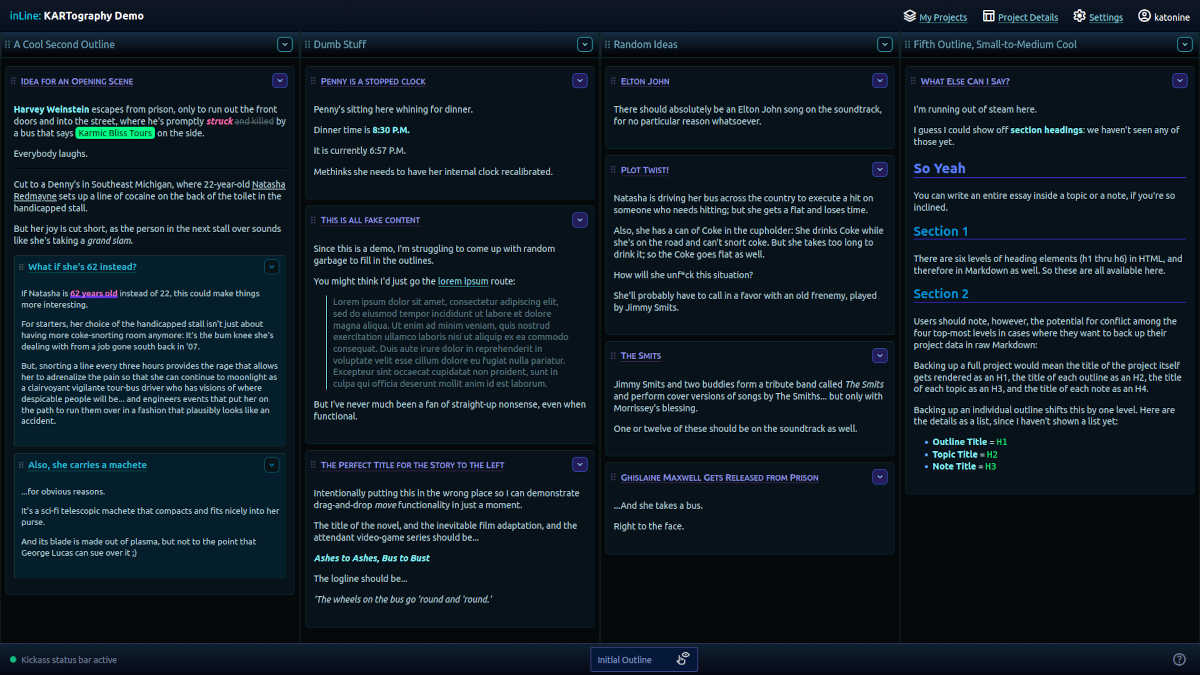
Notice in the above pic (right) that the first outline has been minimized to the bottom of the app. Clicking it will return it to its previous position and make it visible again.
Similarly, sometimes you just want to zoom out and get a big-picture view; so you can "collapse" all the notes for a given topic, or all the topics in a given outline...
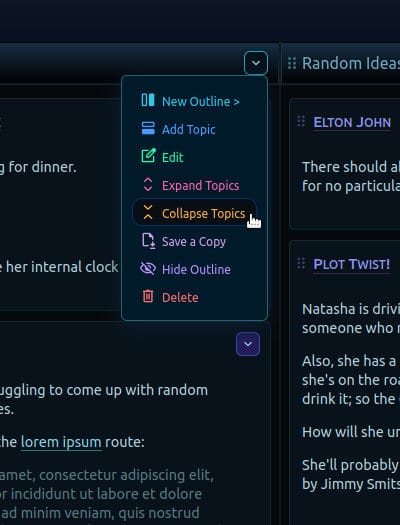
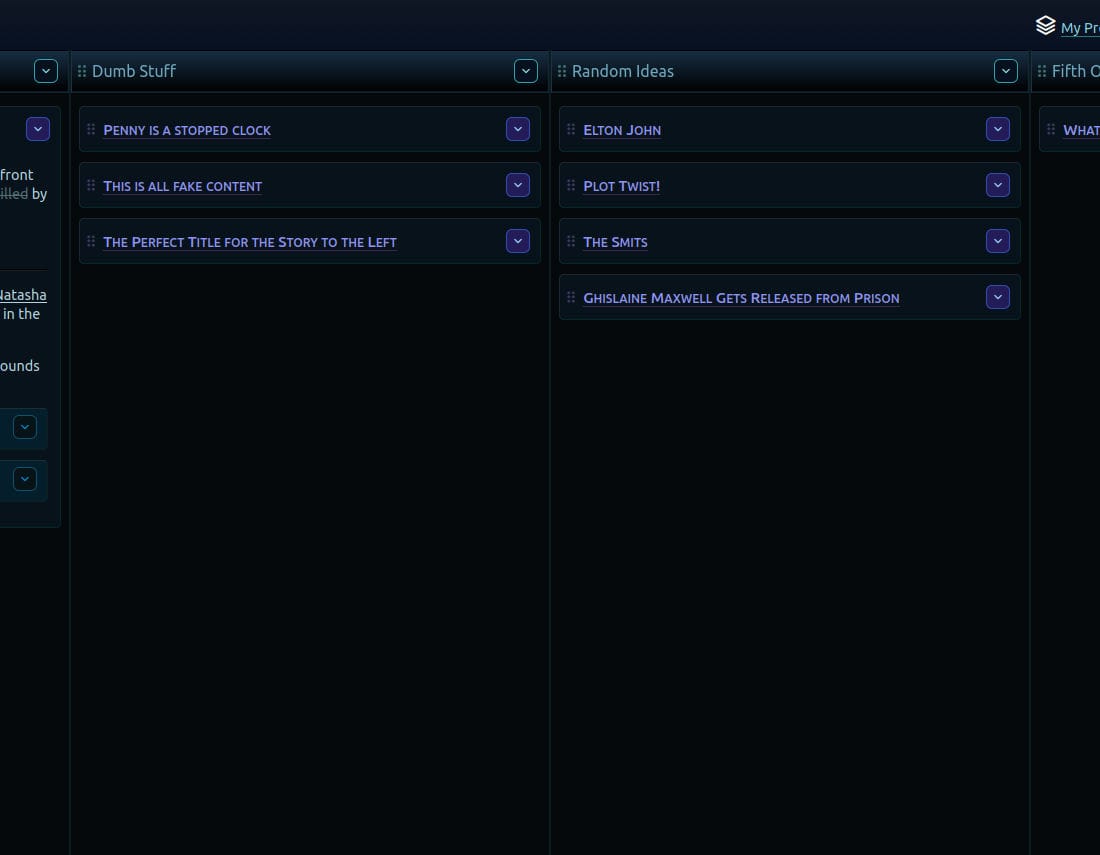
This basically gives you a "table of contents" for a given outline or topic. You can expand and collapse entities individually or in aggregate, and the app will remember the current state of all your content.
Now let's imagine we're fleshing out a plot for a novel or a film. Our leftmost outline is our main plot, and the other outlines are for little idea snippets we come up with but we don't yet know how and where they'll fit in.
So, our main plot has an opening scene, some worldbuilding, some rising action, some falling action, and so on...
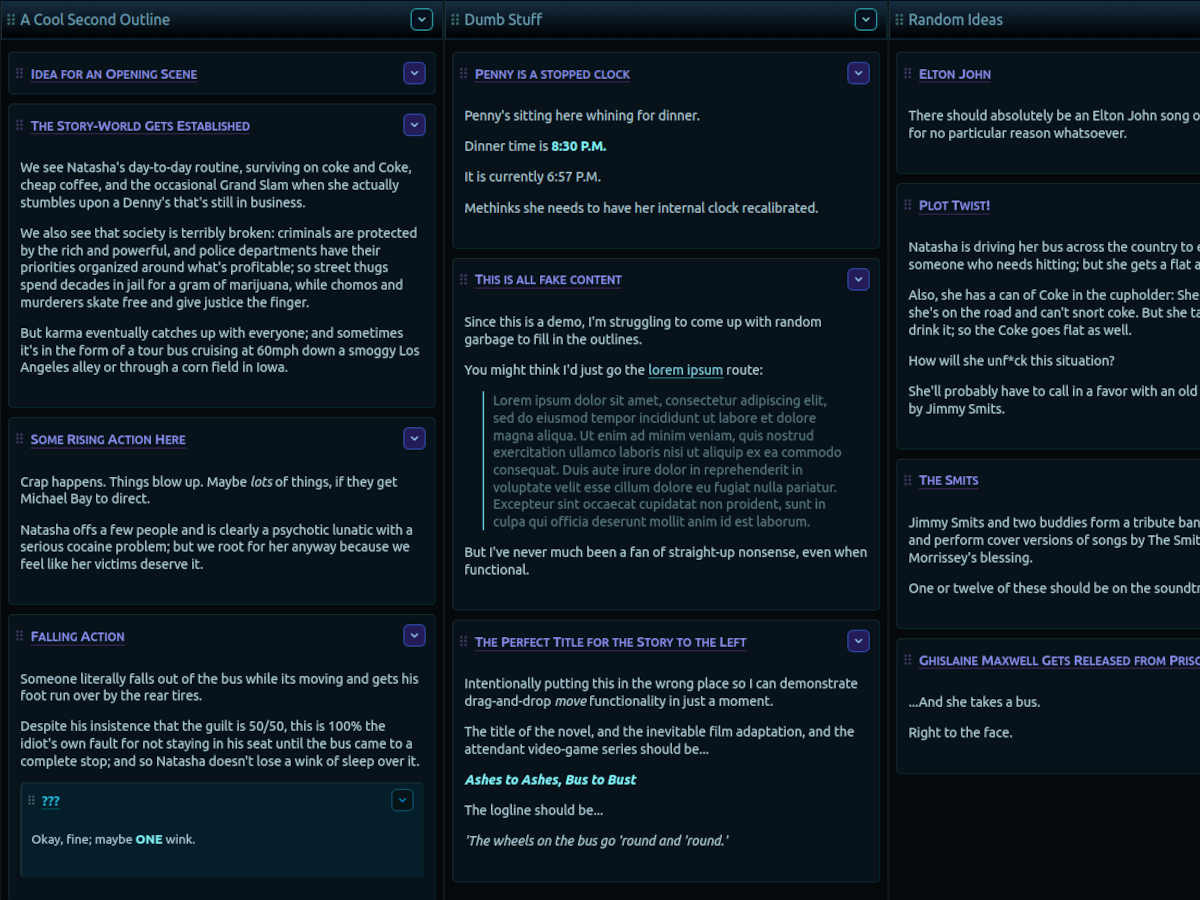
...and now we can start incorporating content from the other outlines into our main plot.
Once we know where our killer "plot twist" belongs, we can just drag it over to our plot outline and drop it into place.
When you start a drag/move operation, "drop zones" will appear at every eligible position where whatever you're moving can logically be placed. For visual feedback, there's also a ghost version of the element you're moving; but apparently my JavaScript code renders this on a separately composited cursor layer or something, because I couldn't capture it in my screenshots.
So, I had Athennia snap a pic with her phone instead...
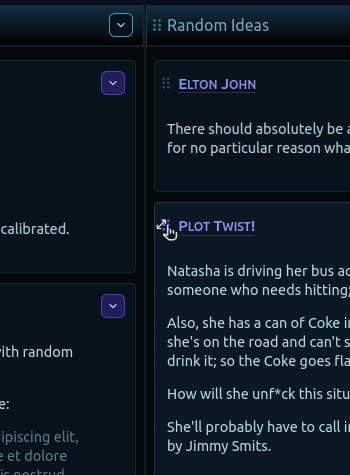
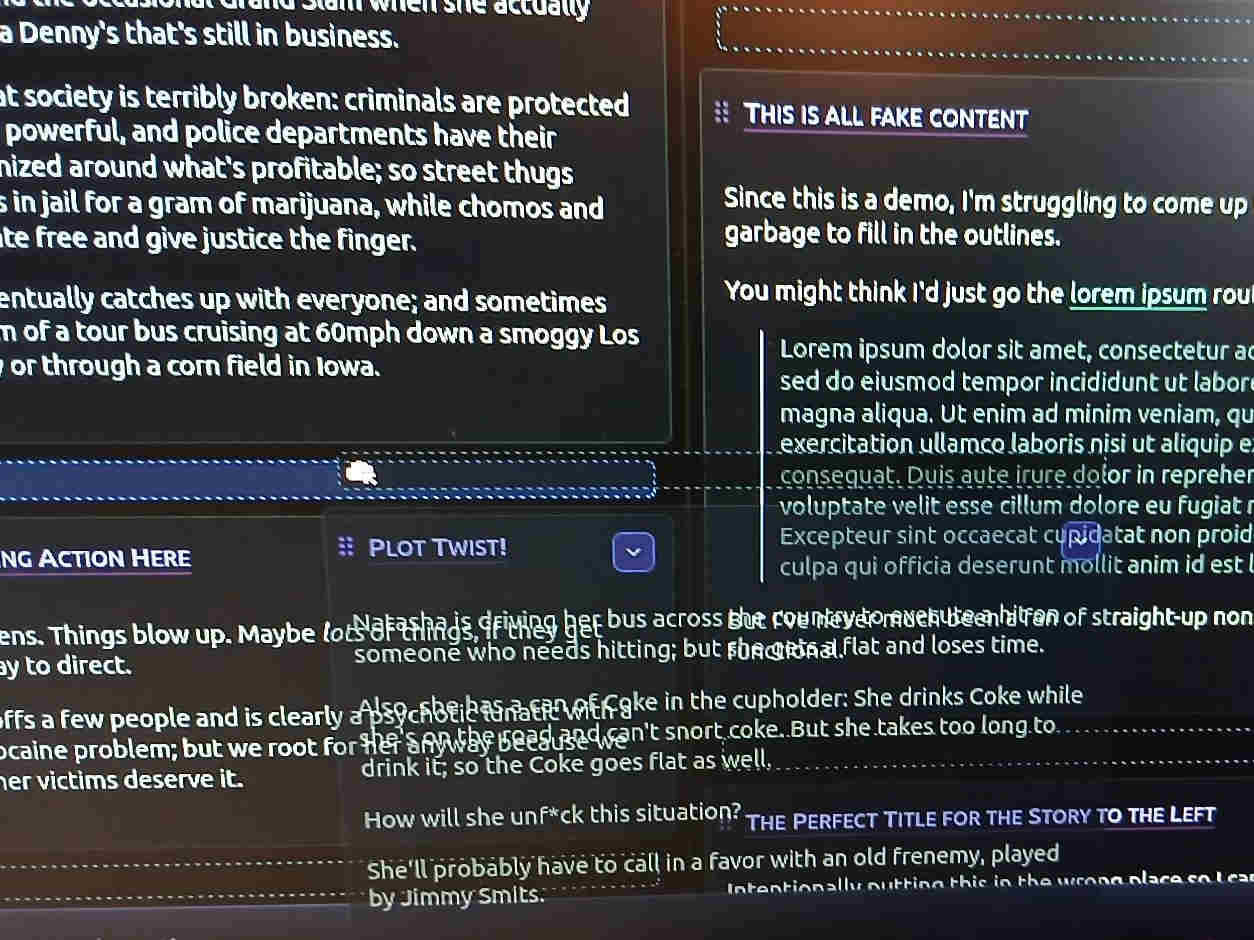
And, there we go: We've moved some topics from auxiliary outlines into the main plot outline...
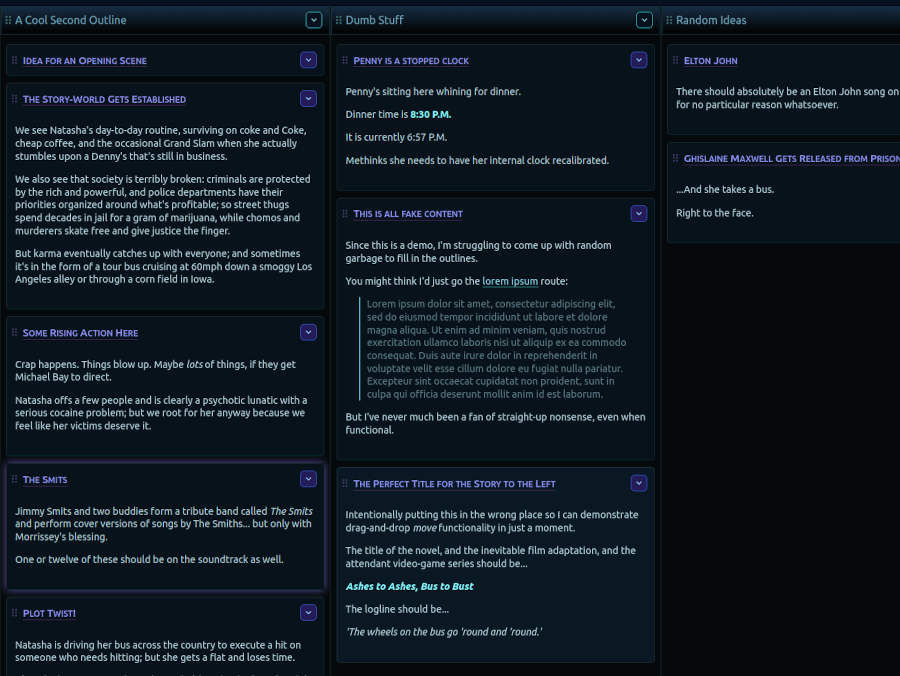
Naturally, you can change the order of your outlines to your liking too.
There's a ghost version for these moves as well, and a visual indicator that shows you were an outline will end up if you drop it at the given cursor position...
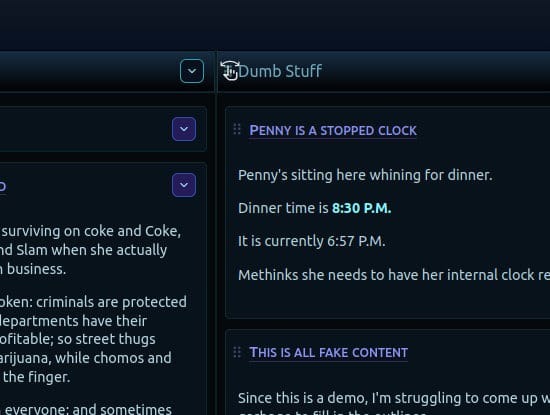
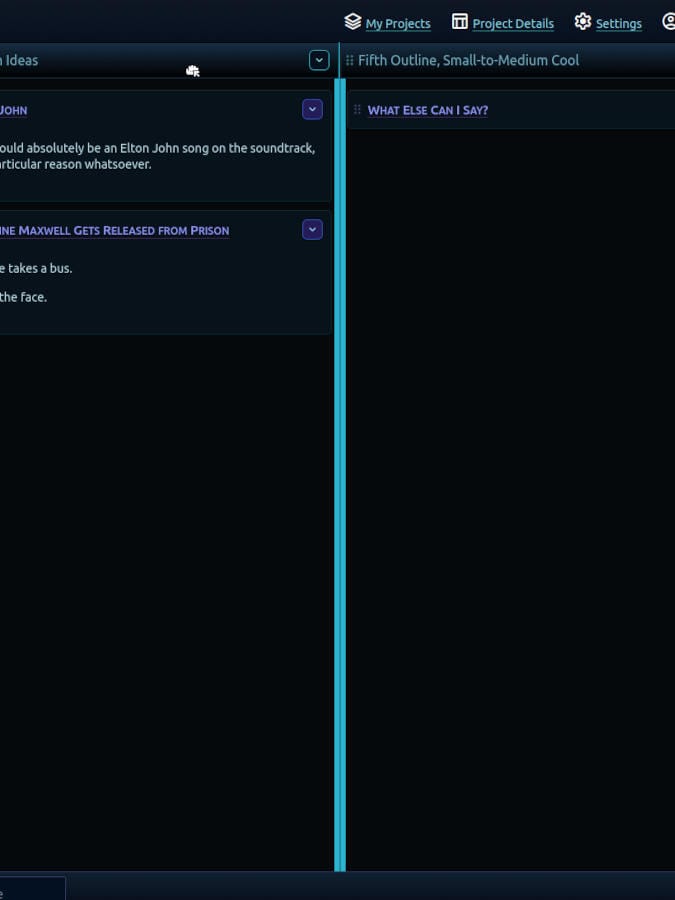
...And, just like that, we've moved 'Dumb Stuff' to the right of 'Random Ideas'...
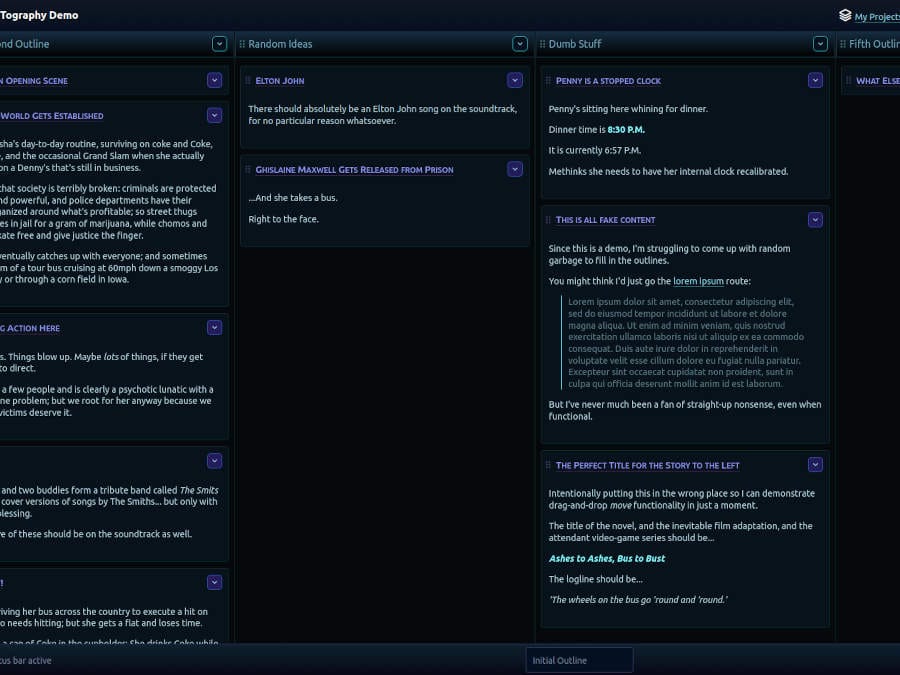
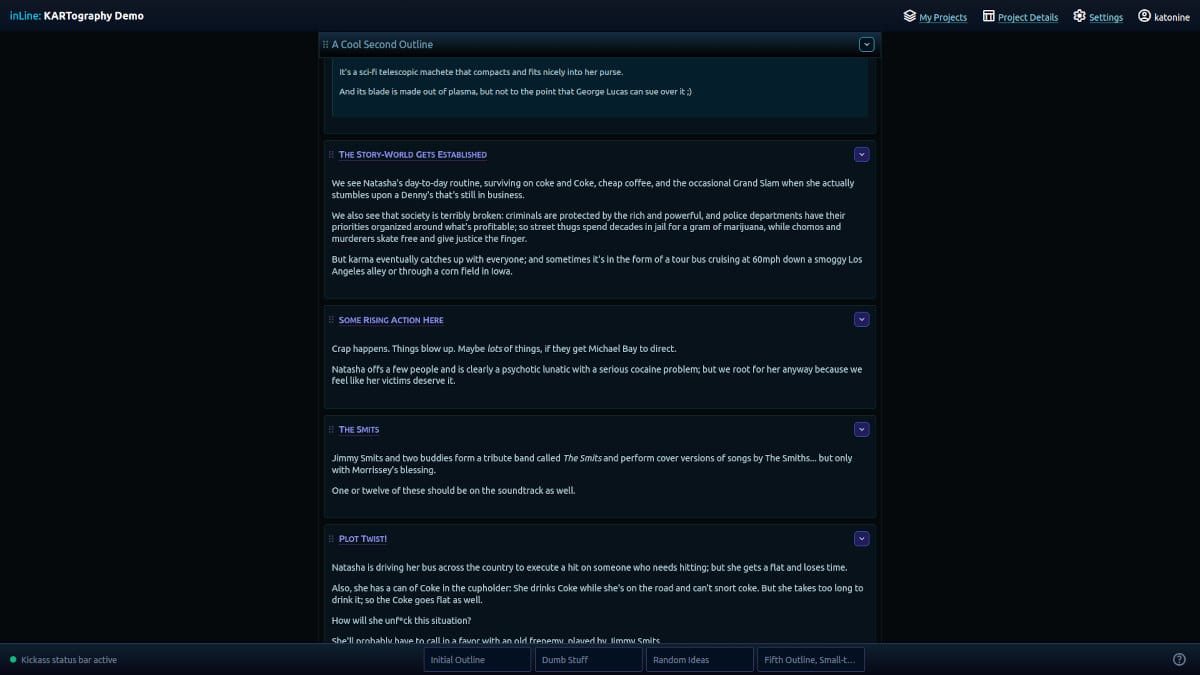
Eventually, you might get to the point where one outline is all you really need to look at; so then you can just hide everything else...
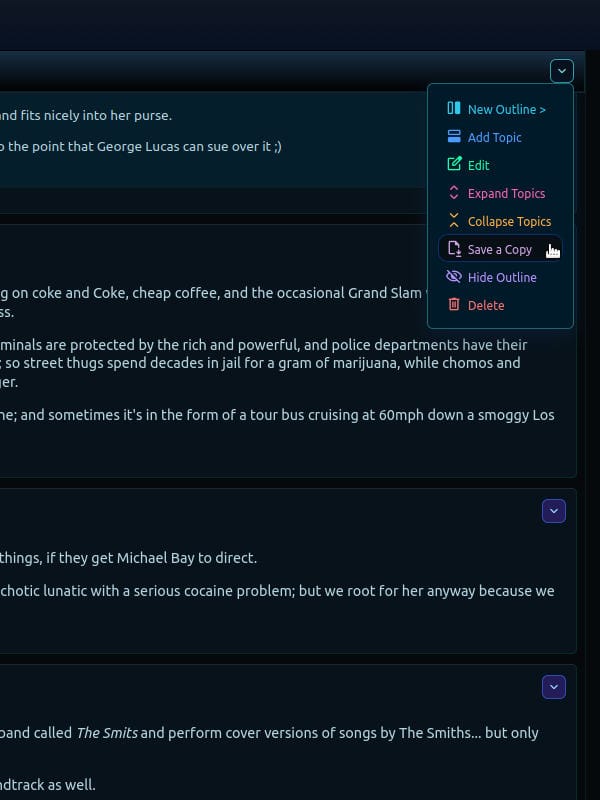
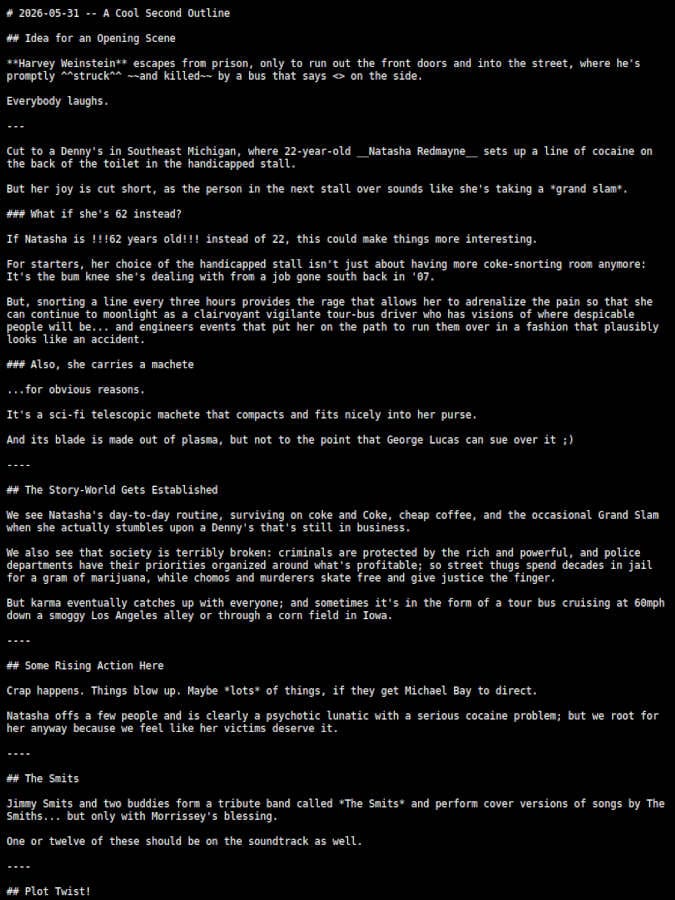
And/or you might want to create a backup of your work—in a plaintext format so that you're not locked into some proprietary file format that software a decade from now won't even be able to open...
And that's inLine.
A work in progress... but with far more progress made than work remaining 😄
Thanks for reading!
—probably someone